How to Convert a PDF Bank Statement to Excel
Learn how PDF.js, OCR, layout recognition, and AI-assisted extraction turn PDF bank statements into structured Excel files.
 Bank Statement Converter Team

A PDF bank statement is easy to read but awkward to reuse. Transactions are locked inside a page layout, so sorting expenses, reconciling balances, or importing records into accounting software often means copying rows by hand. A bank statement converter changes that document into structured Excel data: one transaction per row, with dates, descriptions, debit or credit amounts, and balances in consistent columns.
This guide explains two practical approaches: a traditional PDF.js and OCR pipeline, and newer AI-assisted document extraction. It also shows how to convert a statement with our tool in three steps.
How traditional PDF-to-Excel conversion works
A PDF does not necessarily contain a real table. What looks like a grid on screen may only be separate text fragments positioned at different X and Y coordinates. That is why copying a statement into Excel can produce broken columns and descriptions in the wrong rows.
Our standard converter first uses PDF.js to read the PDF text layer. In addition to the visible characters, PDF.js returns the page number and position of each text item. The converter groups nearby items into physical rows, orders them from left to right, detects likely transaction columns, and recognizes values such as dates, descriptions, debit, credit, and running balance.
The parser also considers known bank layouts and performs basic quality checks. If the PDF has no usable text layer—common with scanned statements—the tool renders the pages and uses OCR to recognize the text. The recognized lines are then passed through the same transaction-structuring process.
This approach is fast and predictable for well-formed digital statements. However, unusual layouts, poor scans, handwritten marks, and multi-column documents may still require review.
How to use our PDF bank statement converter
Step 1: Upload the PDF
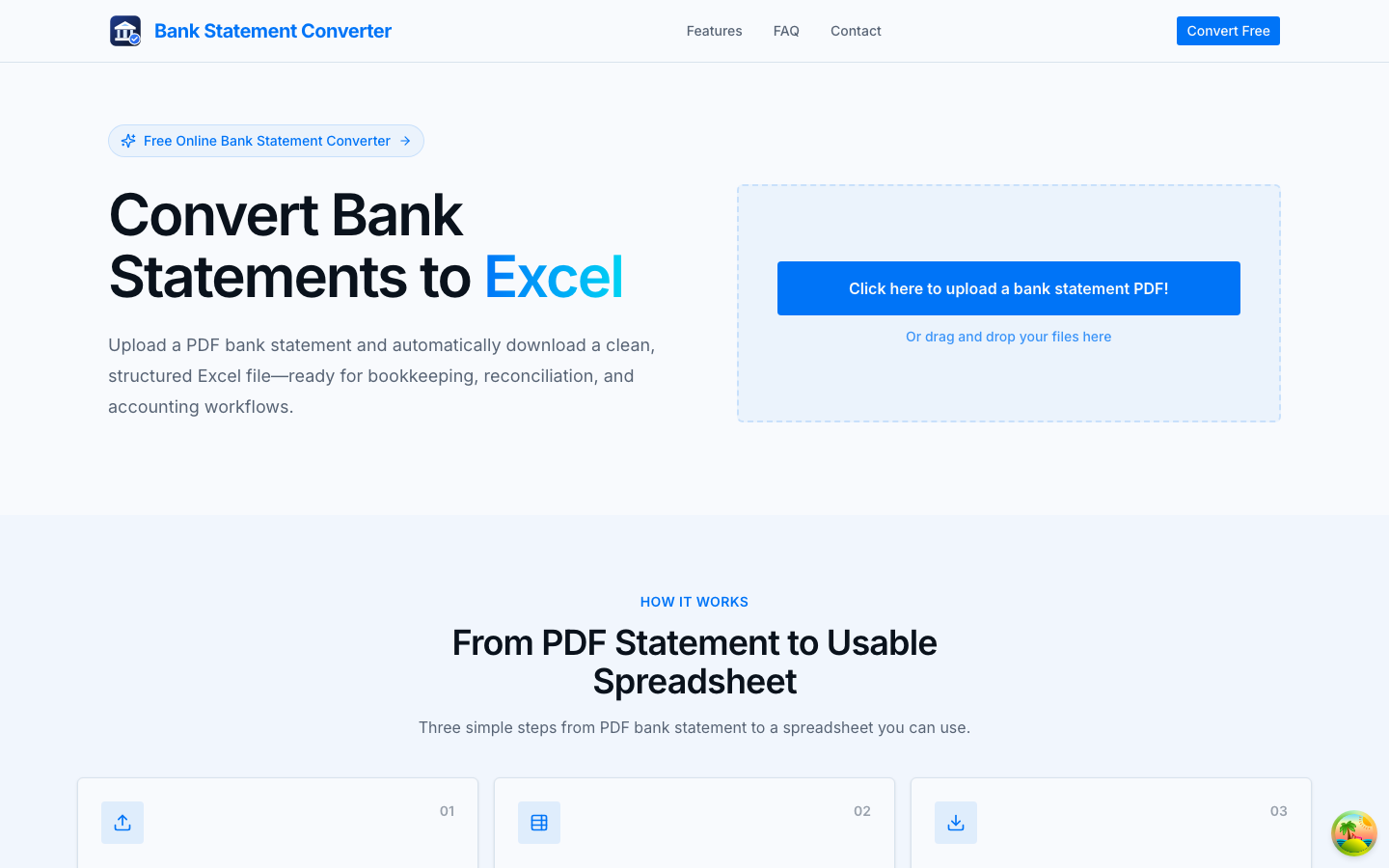
Open the Bank Statement Converter, click the upload button, and choose a PDF downloaded from your bank. You can also drag the file into the upload area. Original digital PDFs normally produce better results than photos or scans.
Step 2: Let the converter extract the transactions
After the upload, the tool reads the document, identifies its pages and statement format, reconstructs transaction rows, and checks the extracted values. If embedded text is unavailable, it can fall back to OCR. Keep the tab open while processing finishes.

Step 3: Review and download Excel
The result page shows the statement status and detected transactions. Review important dates and amounts, then download the Excel file. Before using it for bookkeeping or tax work, compare several rows with the PDF and verify that the opening balance plus credits minus debits equals the closing balance.
Converting bank statements with AI
Modern AI document systems can go beyond fixed coordinates. A vision or document model can interpret table meaning, associate a wrapped description with the correct transaction, and adapt to bank formats it has not seen before. AI is especially useful for inconsistent layouts, scanned pages, or statements where column names vary.
In practice, a reliable workflow often combines technologies: PDF text extraction for speed, OCR for image-based pages, layout analysis for table reconstruction, and AI-assisted recognition for ambiguous fields. Try our AI Bank Statement Converter when you want an intelligent conversion flow designed specifically for financial statements.
AI does not remove the need for verification. A missing minus sign or misplaced decimal can materially change a financial record, so important conversions should always be reconciled against the source statement.
Who is this tool for?
The converter is useful for several groups:
- Individuals and freelancers who want to categorize spending, prepare tax records, or analyze personal cash flow.
- Bookkeepers and accountants who process statements from many clients and want to reduce repetitive data entry.
- Small businesses that need monthly reconciliation, expense reporting, or records for a loan application.
- Financial analysts and auditors who need searchable transaction data for review and testing.
- Developers and operations teams preparing clean CSV or Excel input for internal systems.
Tips for a more accurate conversion
Use the original PDF downloaded from online banking whenever possible. Make sure every page is present and remove an opening password before uploading. For scans, use a straight, high-resolution image without shadows or cropped edges.
After conversion, check the first and last transaction, large payments, negative values, multiline descriptions, and rows near page breaks. Confirm that Excel recognizes amounts as numbers rather than text. When combining files, add columns for the account, currency, and statement period so the source of every transaction remains clear.
Because statements contain sensitive personal and financial information, also review the converter's privacy and file-retention policies before uploading confidential records.
PDF to Excel without manual data entry
The main benefit of conversion is not simply changing a file extension. It is transforming a visual document into data that can be filtered, calculated, categorized, reconciled, and imported elsewhere. PDF.js and OCR provide an efficient foundation for standard statements, while AI-assisted extraction can help with more varied documents.
Start with the standard PDF bank statement converter, or use the AI conversion page for an intelligent workflow. Whichever method you choose, review the output before relying on it for accounting, tax, lending, or audit decisions.